 Sashimii
Cutting and Restoring Words
Cut and restore words from the transcript or the timeline, answer the pauses and cuts Sashimii flagged, and move a cut edge by hand.
Every cut in Sashimii is a stretch of the recording taken out. You make and undo them from the transcript or the timeline, and Sashimii places the edges on the waveform for you.
Cut Words
Select words in the transcript and press Delete. The cut’s edges land on the waveform, between words.
When you select words, or drag a range on the timeline, a small popover above them offers Cut when it holds kept words, Restore when it holds cut words (not in Edit view), and Add Note…. The keys keep working while it shows.
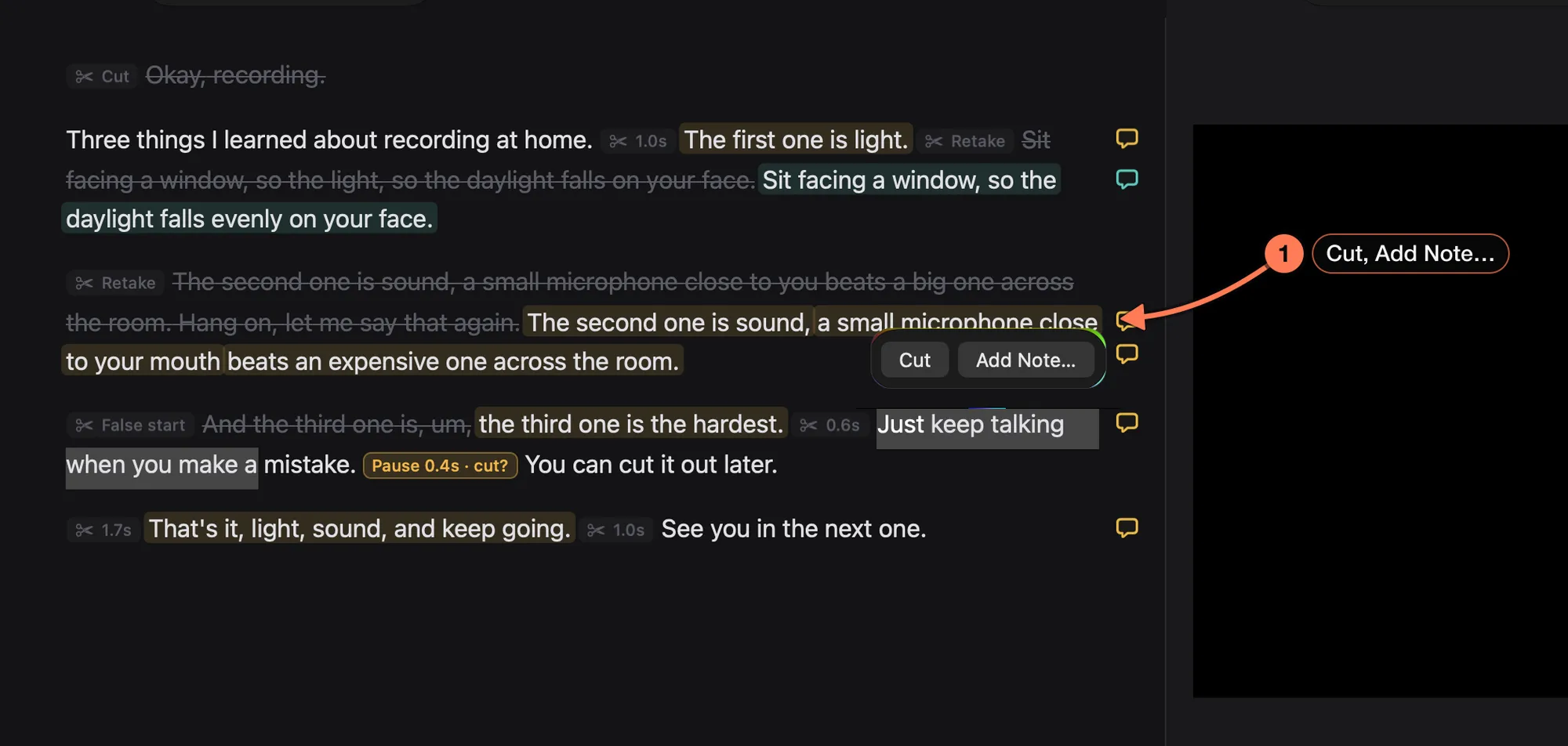
- The selection popover, just above the selected words.
Restore Words
Select struck-through words and press Delete or ⇧ Delete. They come back into the cut.
Cut on the Timeline
- A range: drag across the clips (not the ruler or the playhead), then press Delete.
- A whole clip: double-click it, then press Delete. The cuts on either side become one join; their outer edges don’t move.
- Words: click a word chip under the waveform (Shift-click to extend). The transcript selects them too.
Answer a Kept Pause or a Flagged Cut
The edge pass leaves some calls to you, and marks them in the flag colour:
- A kept pause, such as “Pause 0.4s · cut?”: a pause it wasn’t sure about cutting.
- A flagged cut: a cut that might have taken something you want.
Click its chip in the transcript, or click it on the timeline in Source view. Cut and Keep show above it. For a kept pause, Cut cuts it and Keep keeps it. For a flagged cut, Cut keeps the cut and Keep brings the words back. Either answer clears the flag, as one undo step.
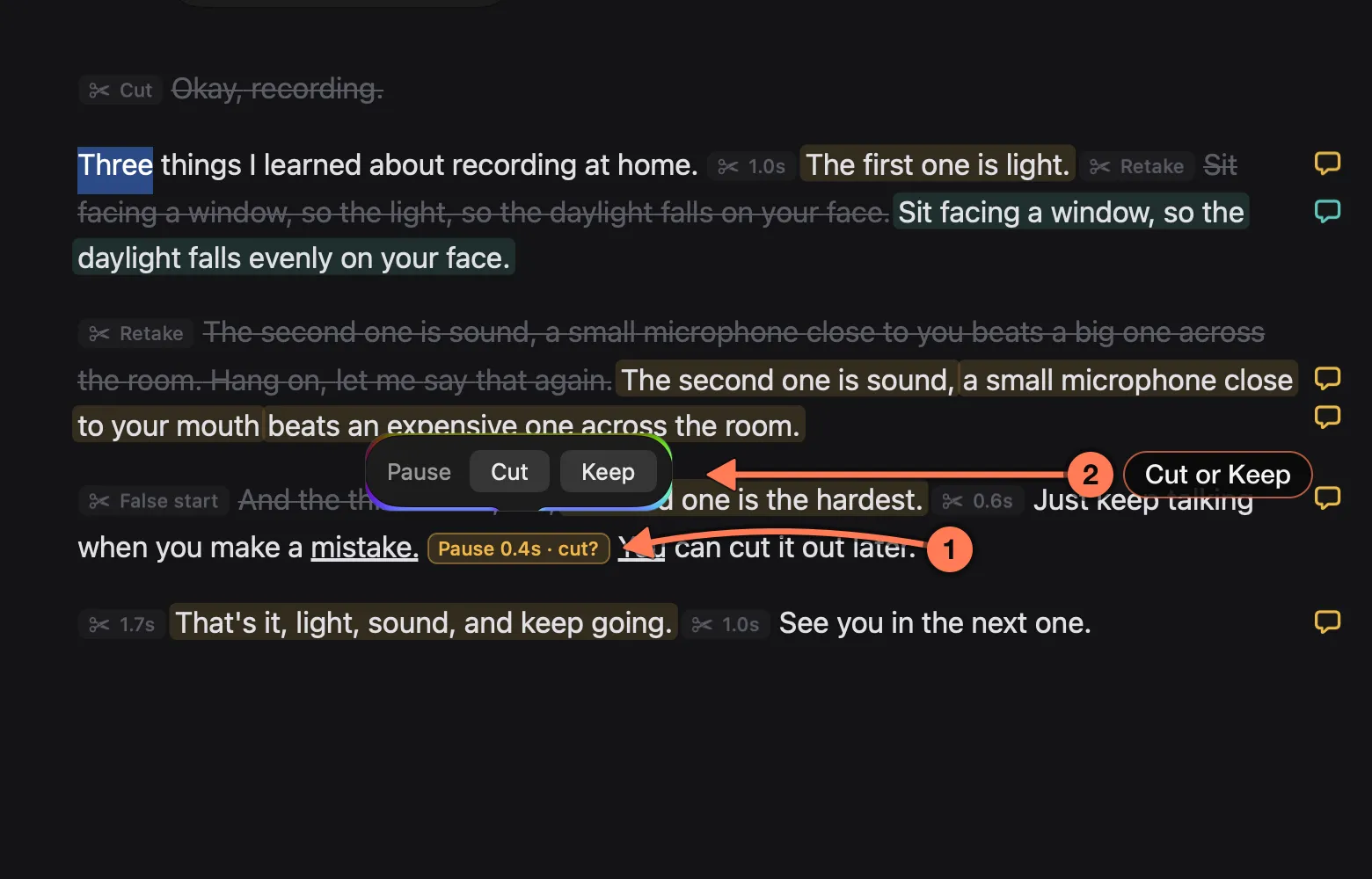
- A kept pause, in the flag colour: the edge pass left this 0.4-second pause in and asks whether to cut it.
- Cut or Keep answers it.
The chip also opens the pause’s details: its length, who kept it, and its out and in times, with Cut It, Accept and Play.
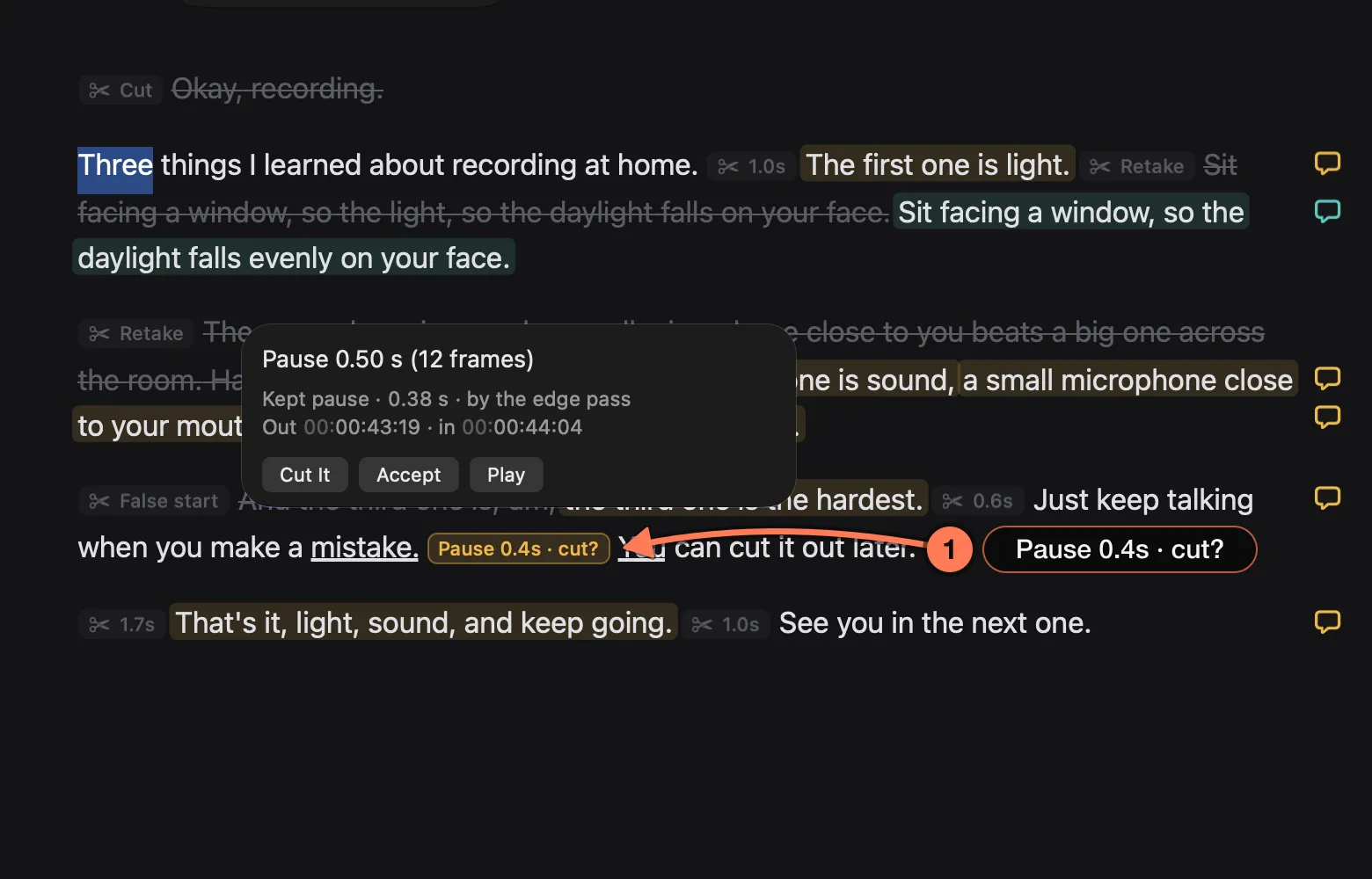
- The chip you clicked. Play lets you hear the pause before you decide.
Move a Cut Edge
Drag an edge handle on the timeline to move it. Double-click a handle to put it back on the waveform. For frame-accurate work on every join in turn, use join review.
Place the Edges Again
Cut › Place Edges on Waveform (⇧ ⌘ E) runs the edge pass again over the whole cut, the same pass your agent runs at the end of a draft. It moves each edge onto the audio, cuts pauses between kept words, and flags borderline pauses for you.