 Sashimii
Exporting
Render the cut as an MP4, export it to DaVinci Resolve as an editable timeline on your original footage, or write an audio project's cut as a WAV.
Click Export in the toolbar, or choose Cut › Export… (⌘ E). The Export sheet asks what to make first; Next… then asks where to save it.
A Video File
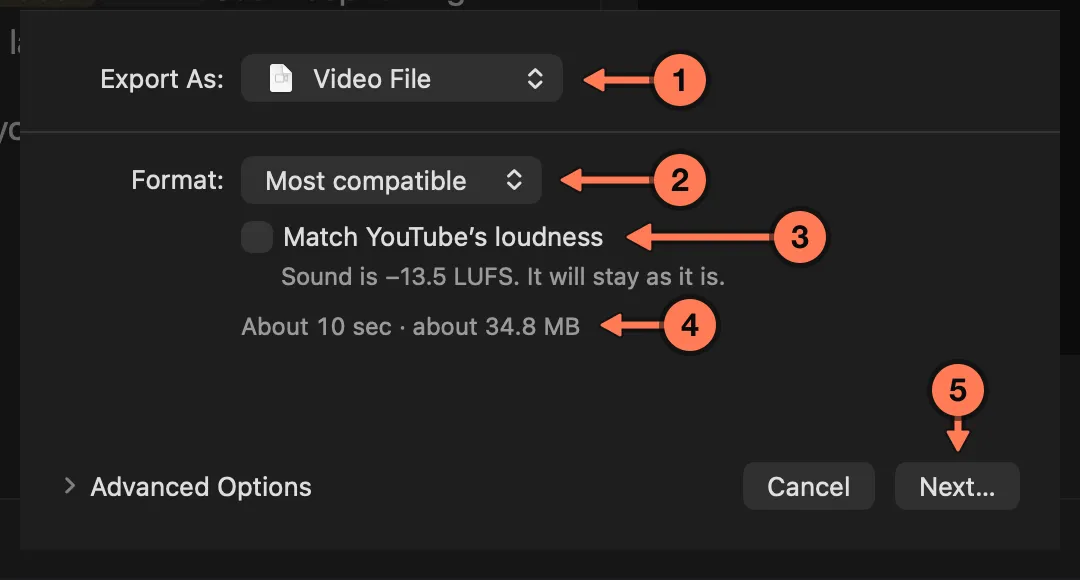
- Export As picks what to make: a video file, or DaVinci Resolve.
- Format, for a video file.
- Match YouTube’s loudness, with the cut’s measured loudness under it.
- An estimate of how long the render takes and how big the file will be.
- Next… opens the save panel, to name the file and choose where it goes.
Export As: Video File renders an MP4 of the cut with its graphics, from your original recording, with the cleaned voice when voice cleanup is on.
- Format: Best for YouTube (HEVC 10-bit) or Most compatible (H.264).
- Match YouTube’s loudness brings the sound to −14 LUFS.
The sheet lists anything it can’t do, such as a graphic it can’t draw or a separate recording that’s missing, and won’t start when the recording is missing or the disk you chose is short of space.
Progress shows on the Export button. Click it for Stop, and when the movie is done, Show in Finder and Copy YouTube Chapters. You can keep editing while it renders; the render doesn’t change.
DaVinci Resolve
Export As: DaVinci Resolve writes an editable rough cut instead of a finished movie: a .fcpxmld bundle (FCPXML 1.13) built from your original media. Each kept section is its own clip on your original footage, so you can ripple, add B-roll and grade as if you had cut it in Resolve.
- Sound: the recording you chose at setup, original rather than cleaned, at its own channels and sample rate. When a separate recording needs it, the bundle carries a lined-up copy of it.
- Timecode: your source timecode is kept. At 29.97 fps you can choose drop-frame or non-drop-frame.
- Frame rates: 23.976, 24, 25, 29.97, 30, 50, 59.94 and 60 fps. Variable frame rate footage needs converting first.
- Joins are hard cuts, for you to finish in Resolve.
- The export report (
export-report.json, in the bundle) lists every section, note, chapter and graphic. View Export Report opens it when the export finishes. Notes, chapters and graphics come across as reminders, not finished graphics; Resolve doesn’t read the markers from the bundle yet, so the report is where to find them.
Your originals stay where they are. The Resolve export is tested with DaVinci Resolve 21.1.1, and Resolve is the only editor Sashimii exports to.
An Audio Project’s WAV
In an audio project, Export… writes the cut as a 24-bit WAV with a 10 ms crossfade at every join: the cleaned voice in mono at 48 kHz when voice cleanup is on, otherwise the recording at its own sample rate and channels. See Audio Projects and Voiceover Videos.
When Something Goes Wrong
One export runs at a time; ⌘ E during one shows its progress. A failed export says why on the Export button, with Try Again and Choose Another File….