# Voice Cleanup (Sashimii Docs, Editing)
> Clean up background noise and room echo in your voice, preview the result against the original, and choose how much to apply.
Canonical: https://sashimii.app/docs/voice-cleanup/
Last updated: 2026-11-02
Voice cleanup reduces background noise and room echo in the recording, on your Mac. It is on for new projects, at Amount 75%, unless you untick **Clean up voice** at setup. The transcript and the waveform always use the original sound.
Open it with **Audio** in the toolbar, or **Cut › Voice Cleanup…** (⌥ ⌘ V). The Audio icon shows whether cleanup is on.
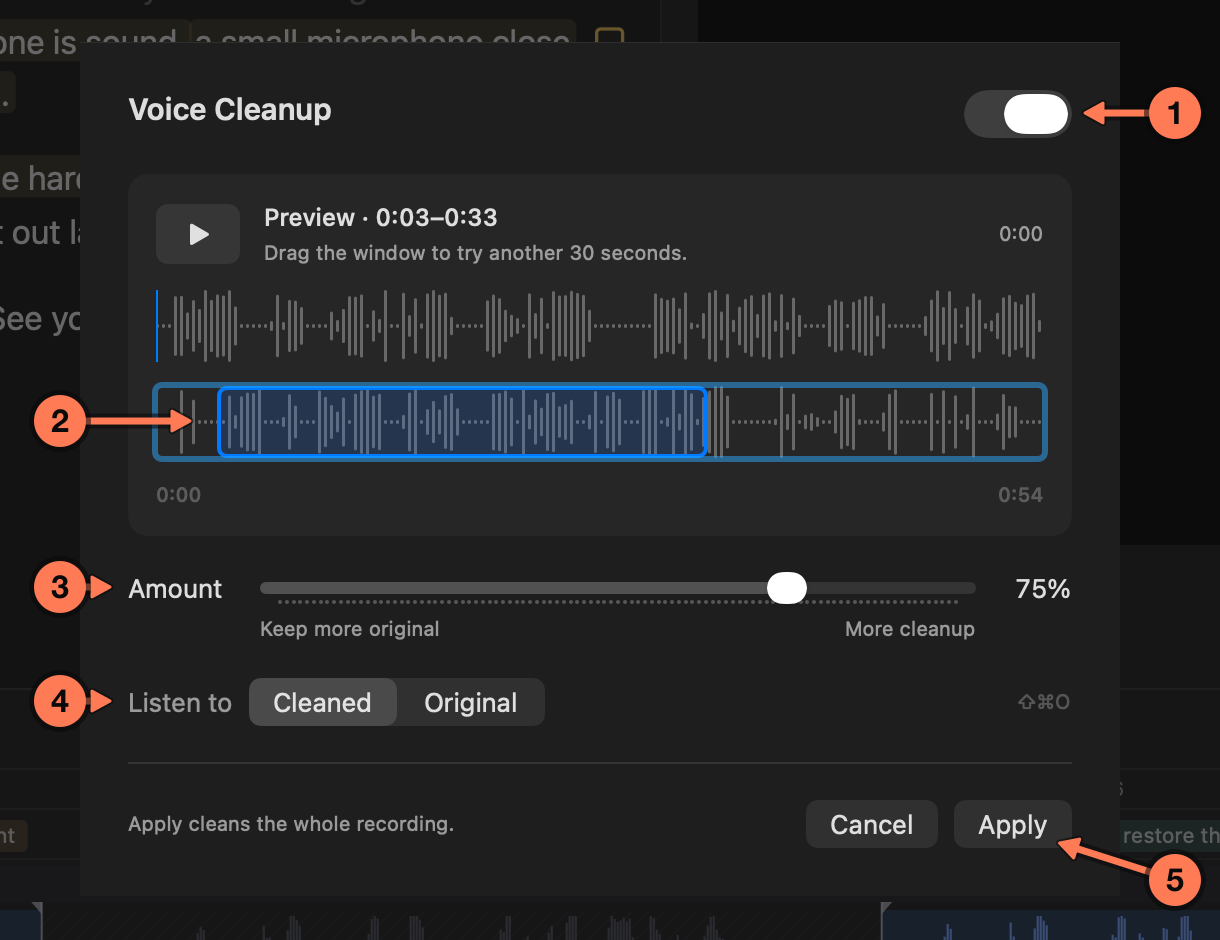
1. **On or off** for the whole project.
2. **The preview window**: 30 seconds of speech. Drag it along the recording to try another passage.
3. **Amount**: lower keeps more of the original sound, higher cleans more.
4. **Listen to** Cleaned or Original, to compare (⇧ ⌘ O).
5. **Apply** cleans the whole recording at that Amount.
Outside the sheet, **Cut › Listen to Original** (⇧ ⌘ O) flips the main preview between the cleaned and the original sound.
A rendered video uses the cleaned voice when cleanup is on. An export to DaVinci Resolve always uses the original recording, so you can do your own sound work there.
## Related
- [Edit View and Graphics](https://sashimii.app/docs/edit-view-and-graphics/)
- [Exporting](https://sashimii.app/docs/exporting/)