# Finding Your Way Around (Sashimii Docs, Editing)
> The parts of a Sashimii project window, the Source, Cut and Edit views, and how to play, move the playhead and zoom the timeline.
Canonical: https://sashimii.app/docs/the-window/
Last updated: 2026-11-02
A project window has three parts: the transcript on the left, the video on the right, and the timeline along the bottom.
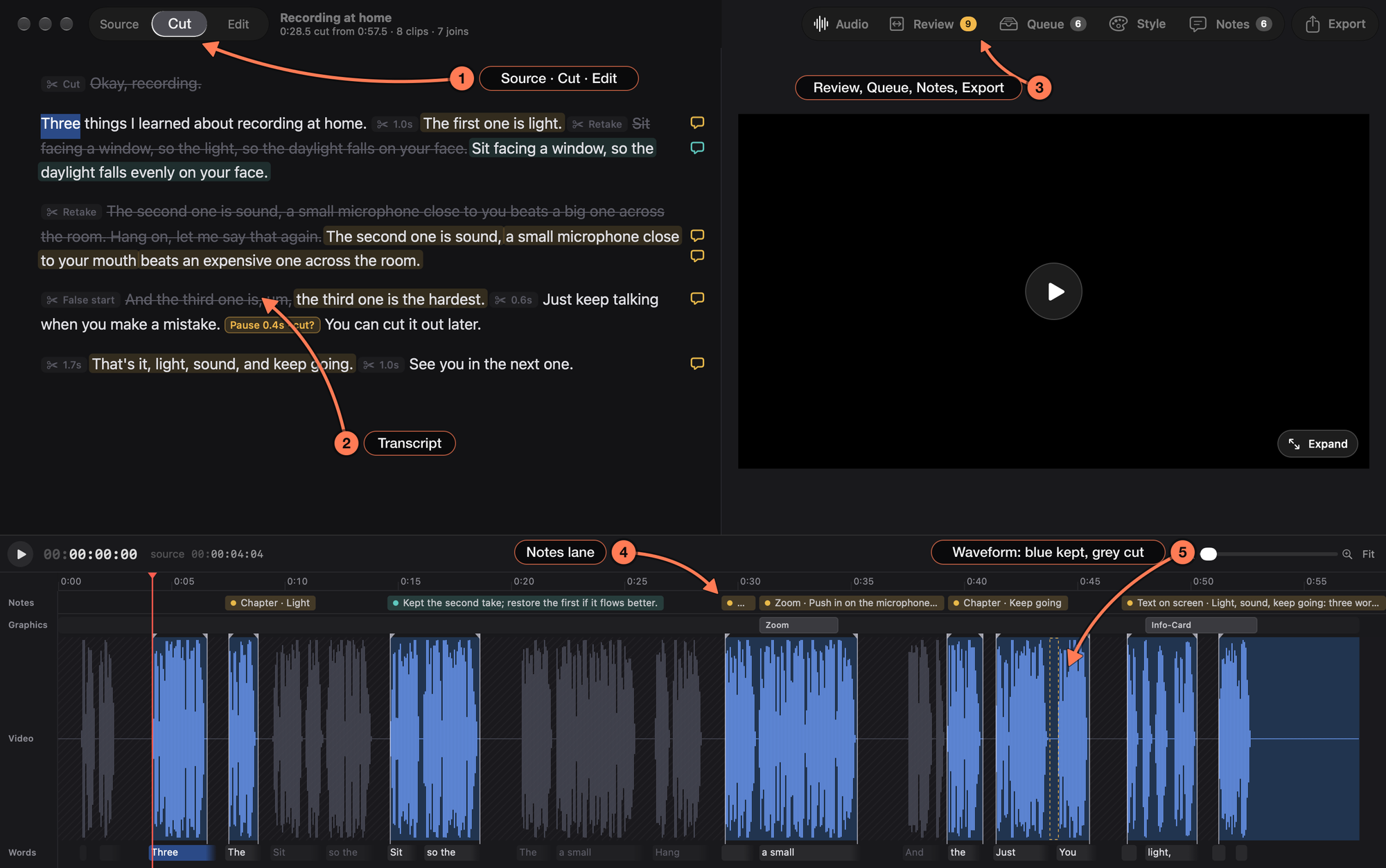
1. **Source, Cut and Edit** choose what plays and shows (below).
2. **The transcript.** Cut words are struck through, with a label saying why: Retake, False start, Pause, Cut. Click a word to play from it.
3. **The toolbar.** Audio (voice cleanup), Review (join review, with the number of joins left to review), Queue (work for your agent), Style, Notes and Export.
4. **The Notes lane.** Every note, chapter and direction, at its place in the recording.
5. **The waveform.** Kept clips are blue; cut parts are grey. The small handles at each clip’s ends are its cut edges.
The title bar shows the project’s name, the cut’s length against the recording’s, and how many clips and joins it has.
## Source, Cut and Edit
| View | Keys | What it shows |
| --- | --- | --- |
| Source | ⌘ 1 | The whole recording plays, cut words included. Cut words show plain and grey. |
| Cut | ⌘ 2 | Playback skips the cuts. Cut words are struck through, and the timeline shows the whole recording. This is the place for cutting. |
| Edit | ⌘ 3 | The cut as one continuous timeline, with its graphics. The transcript leaves cut words out. See [Edit View and Graphics](https://sashimii.app/docs/edit-view-and-graphics/). |
A project opens in Cut. E switches between Cut and Edit. The view stays as you picked it while you click, seek and play.
## Playing and Moving Around
- **Play or pause:** Space.
- **Play from a word:** click it. In Cut view, clicking a cut word plays the source so you can hear it.
- **Move the playhead:** click the timeline, or drag the playhead by its line or its head. The video and transcript follow while you drag.
- **Step:** ← → move one frame; with Shift, one second. Home and End jump to the start and end.
## Zooming and Scrolling the Timeline
- **Zoom around the pointer:** pinch, or ⌘-scroll.
- **Zoom around the playhead:** = and -, or the zoom slider above the timeline.
- **Fit the whole recording:** **Fit**, or ⌘ 0.
- **Scroll:** swipe with two fingers or use the scroll wheel; Option-drag pans. Zoomed in, a scroll bar shows along the bottom edge.
## A Bigger Video
Drag the line between the transcript and the video to give the video more room; double-click the line to put it back. **Large Preview** (⌥ F, or **Expand** on the video) hides the transcript and keeps the timeline. Press ⌥ F or Esc to return.
## Undo
⌘ Z undoes and ⇧ ⌘ Z redoes, for cuts, edges, notes and graphics.
## Related
- [Drafting with Your Agent](https://sashimii.app/docs/drafting-with-your-agent/)
- [Cutting and Restoring Words](https://sashimii.app/docs/cutting/)